
Back to setup guides
Outlook Desktop
1.Open Outlook and add another account
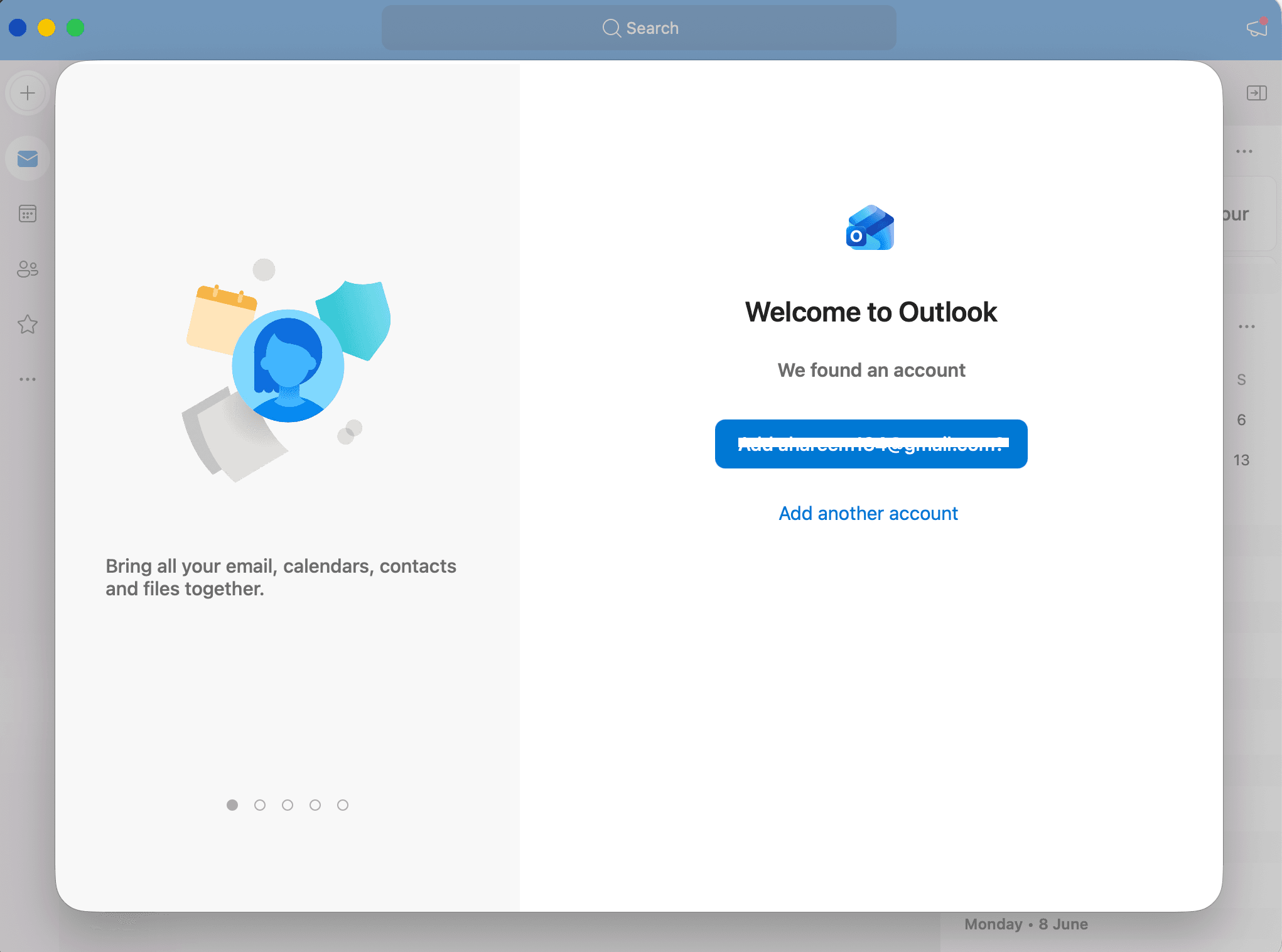
Open Microsoft Outlook. On the welcome screen, click Add another account.
- If you already use Outlook and do not see the welcome screen: Outlook → Settings → Accounts → click Add Account (+), enter your email address, click Continue, then continue from step 2.
2.Enter your email address
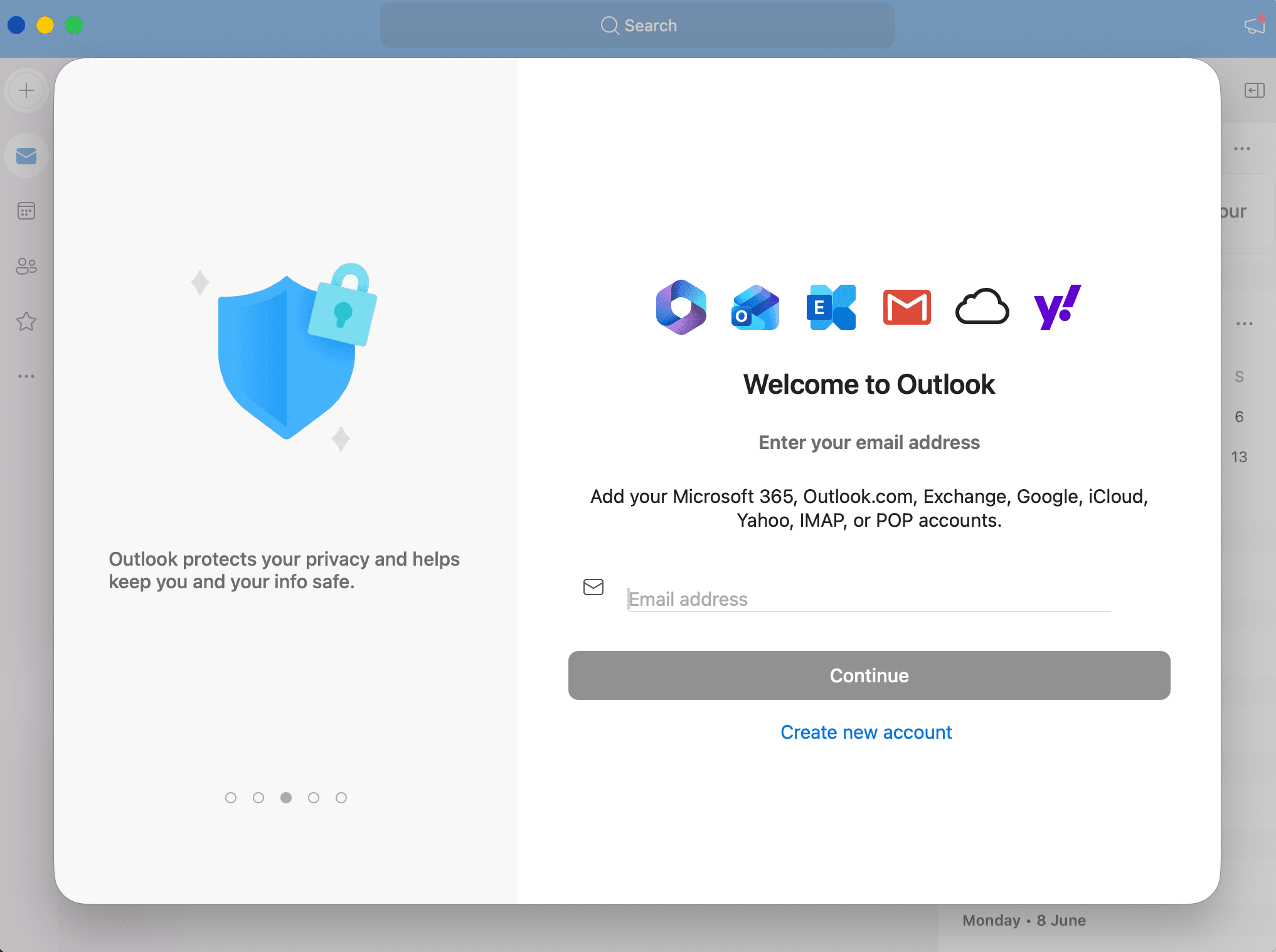
Type your full Byteshifted email address in the Email address field, then click Continue.
- Email address
- user@yourdomain.com
3.Choose the provider and select IMAP
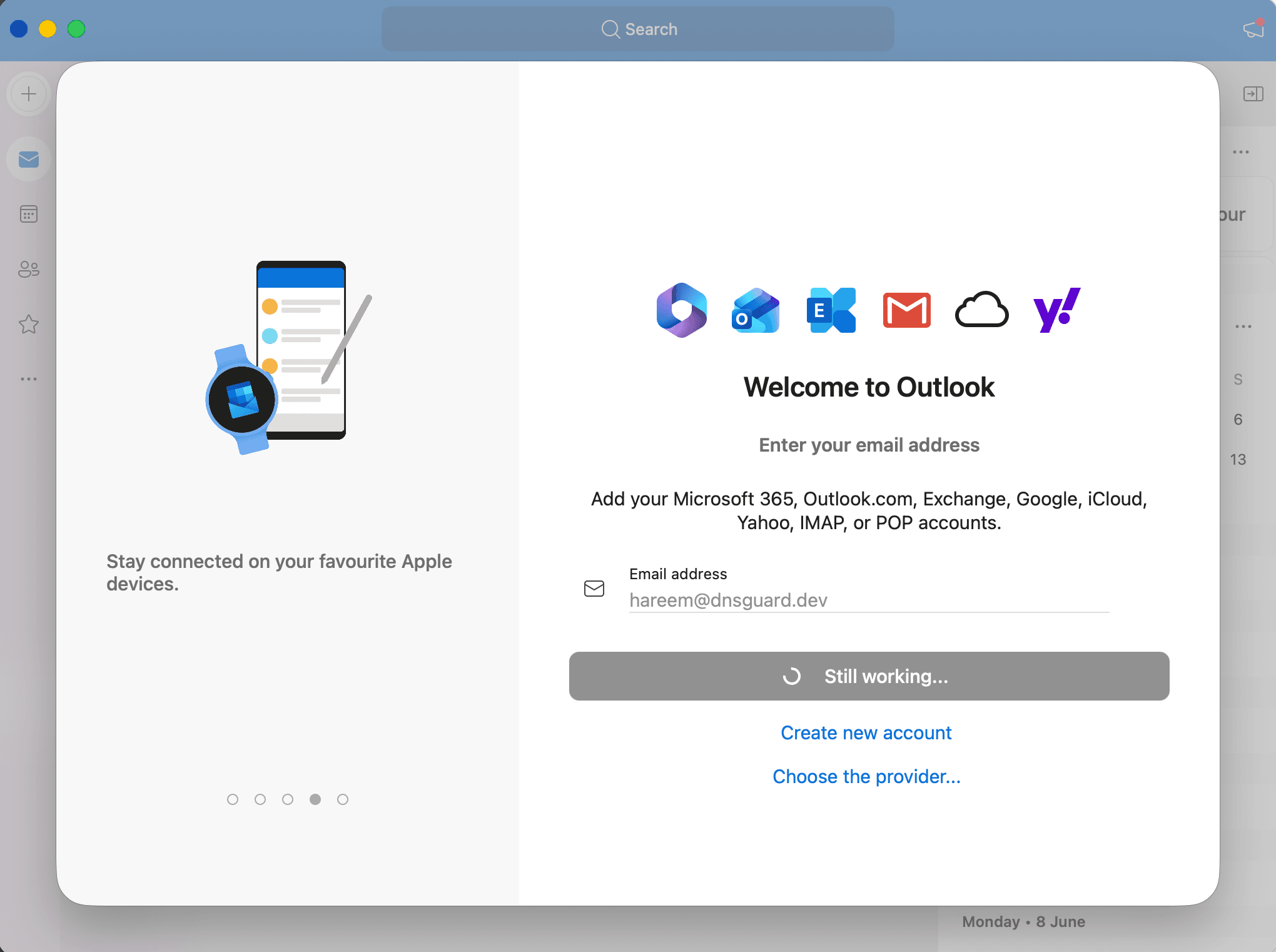
If Outlook keeps checking your email address, click Choose the provider at the bottom of the screen.
- On the provider list, select Other account, then select IMAP.
- If a different screen opens (for example Microsoft 365 or Google), go back and use Choose the provider, then pick Other account and IMAP.
4.Enter IMAP incoming settings
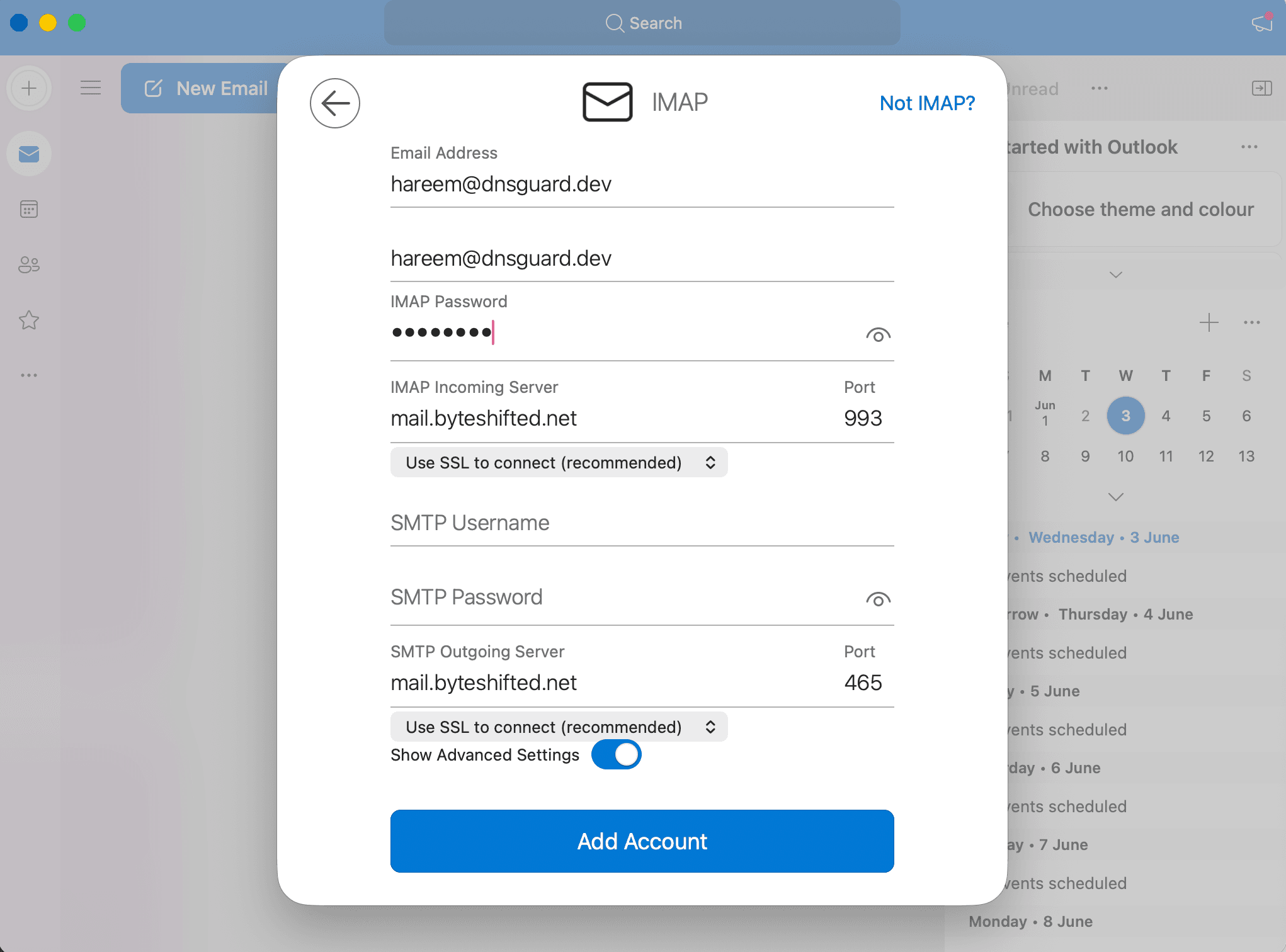
On the IMAP screen, enter your mailbox password. Confirm the incoming server settings below. Turn on Show Advanced Settings to configure outgoing mail.
- Email address
- user@yourdomain.com
- Username
- user@yourdomain.com
- IMAP password
- Your email password
- IMAP incoming server
- mail.byteshifted.net
- IMAP port
- 993
- Incoming encryption
- Use SSL to connect (recommended)
5.Enter SMTP outgoing settings
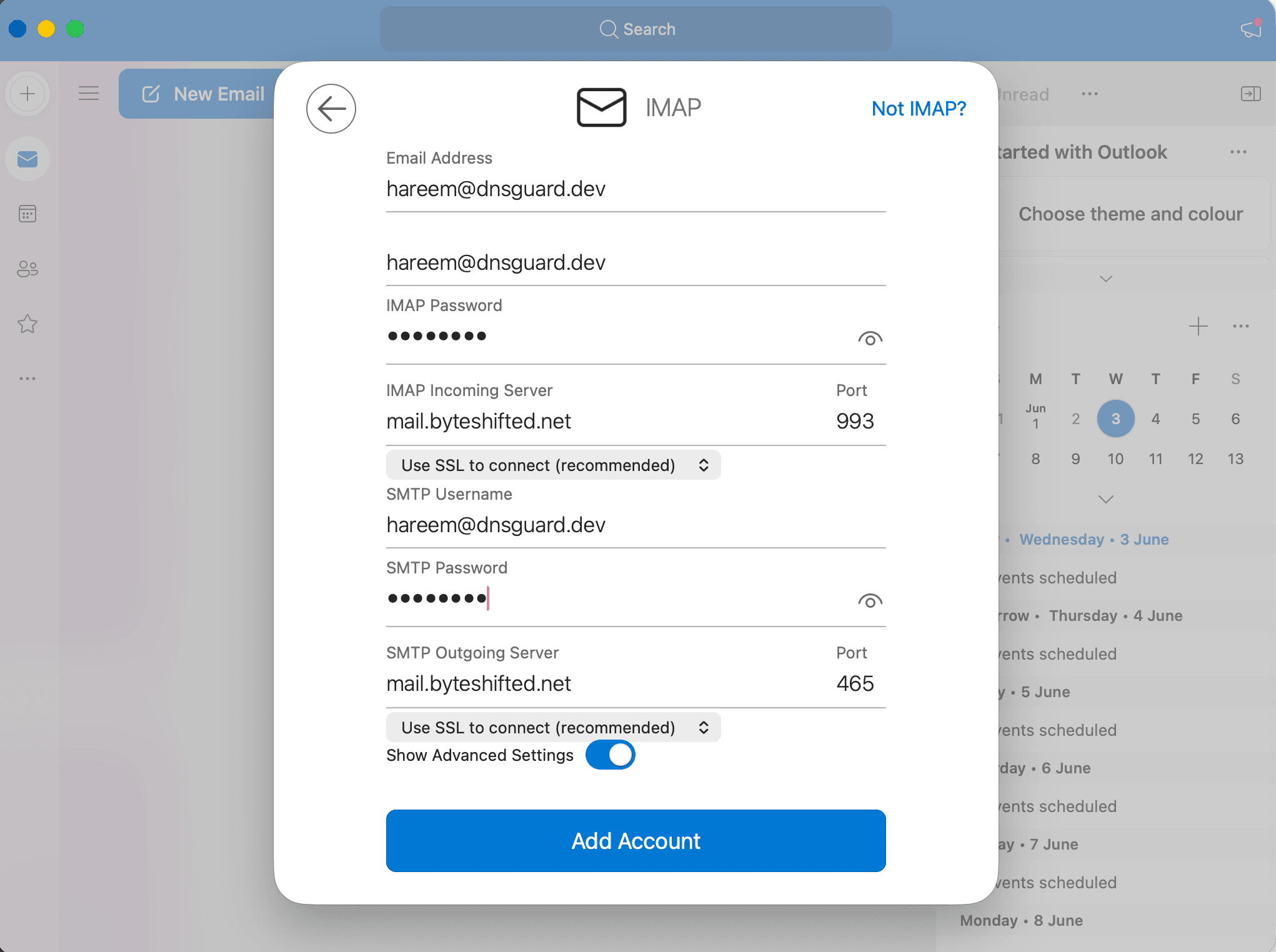
With Show Advanced Settings on, fill in the SMTP username and password. Use the outgoing server settings below, then click Add Account.
- SMTP username
- user@yourdomain.com
- SMTP password
- Your email password
- SMTP outgoing server
- mail.byteshifted.net
- SMTP port
- 465 (SSL) or 587 (STARTTLS)
- Outgoing encryption
- Use SSL to connect (recommended)
6.Your mailbox is ready
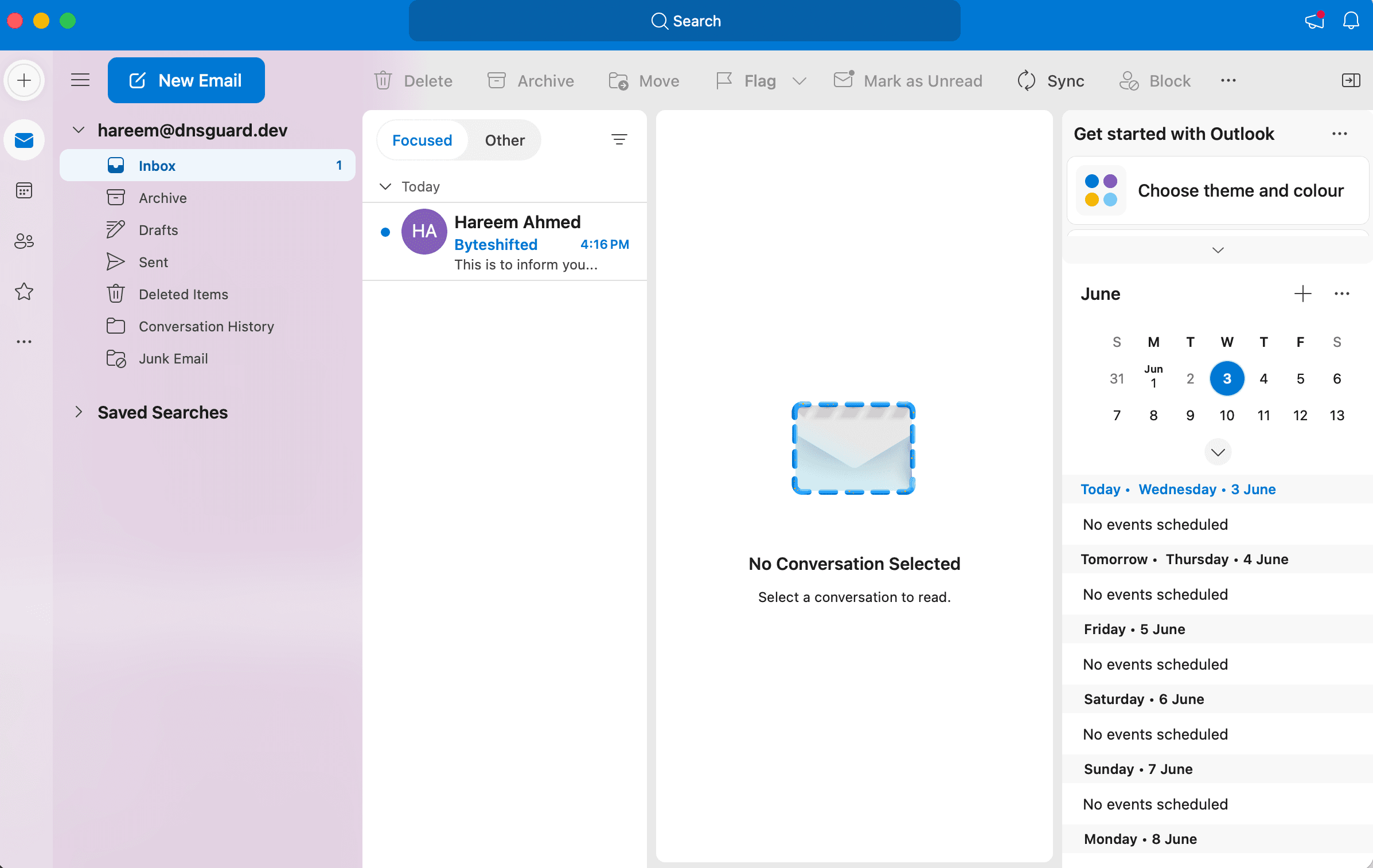
Your account appears in the sidebar and your inbox loads. Send a test email to confirm sending and receiving work.