
Back to setup guides
Outlook for iPhone
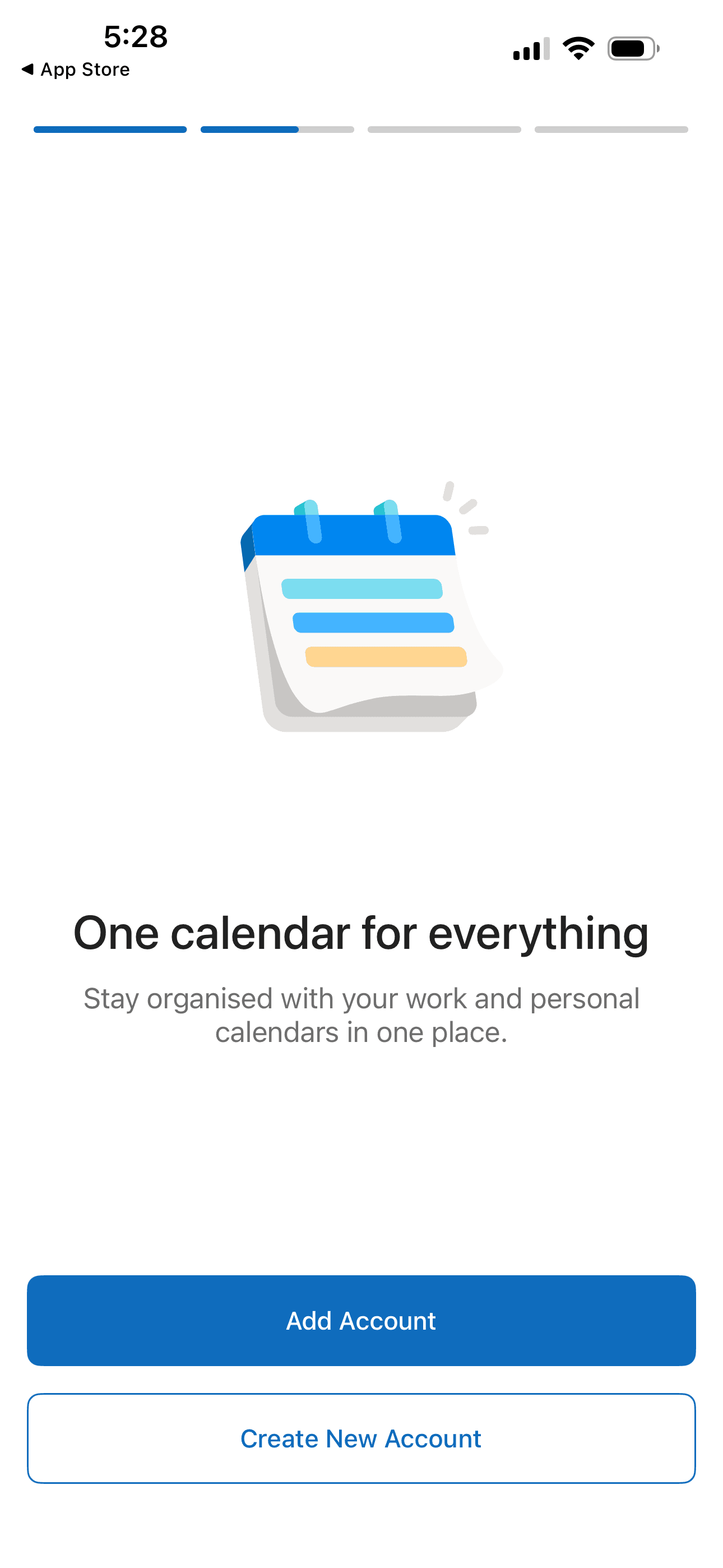
1.Open Outlook and tap Add Account
Install Microsoft Outlook from the App Store if needed. On the welcome screen, tap Add Account.
- If you already use Outlook: tap your profile icon → Add Account.
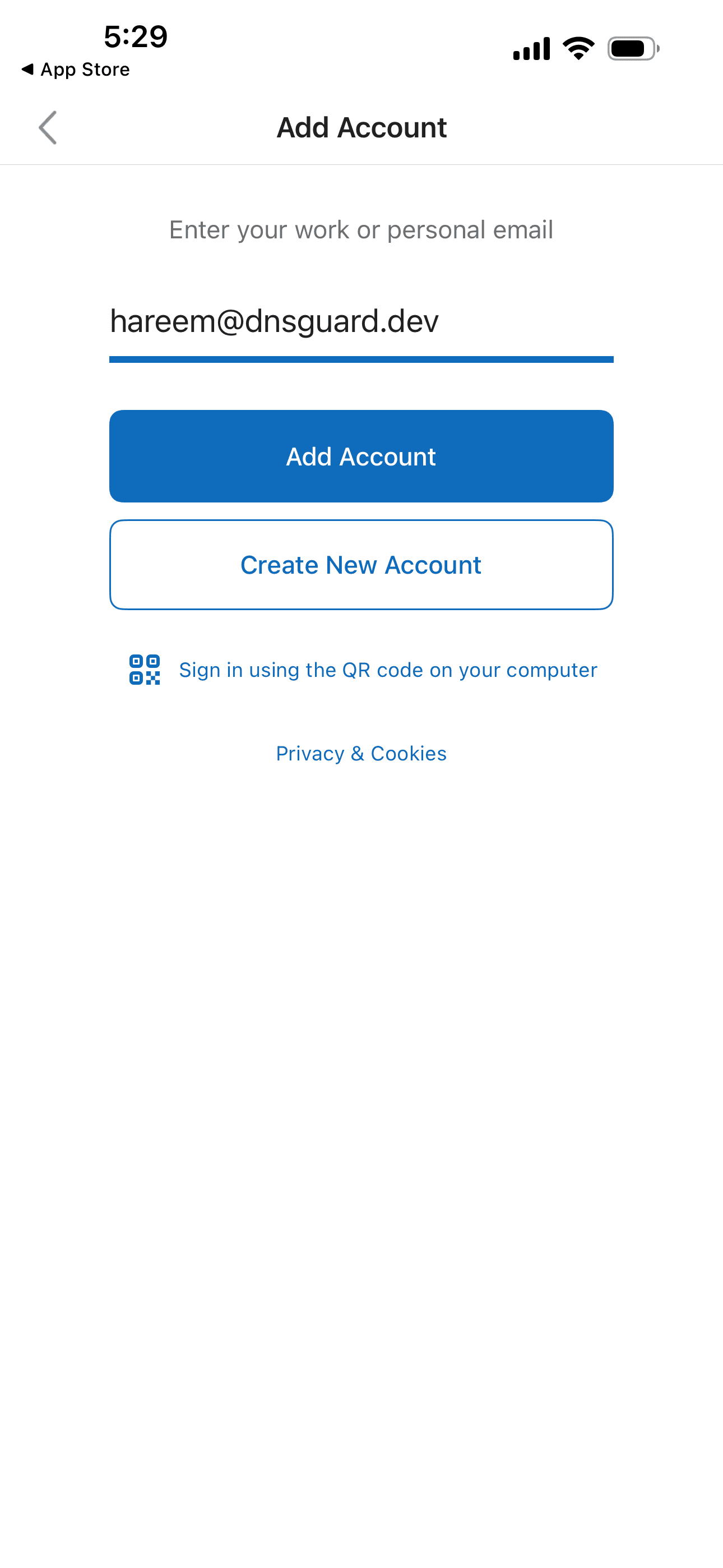
2.Enter your email address
Type your full Byteshifted email address, then tap the blue Add Account button.
- Email address
- user@yourdomain.com
3.Change account provider if Exchange opens
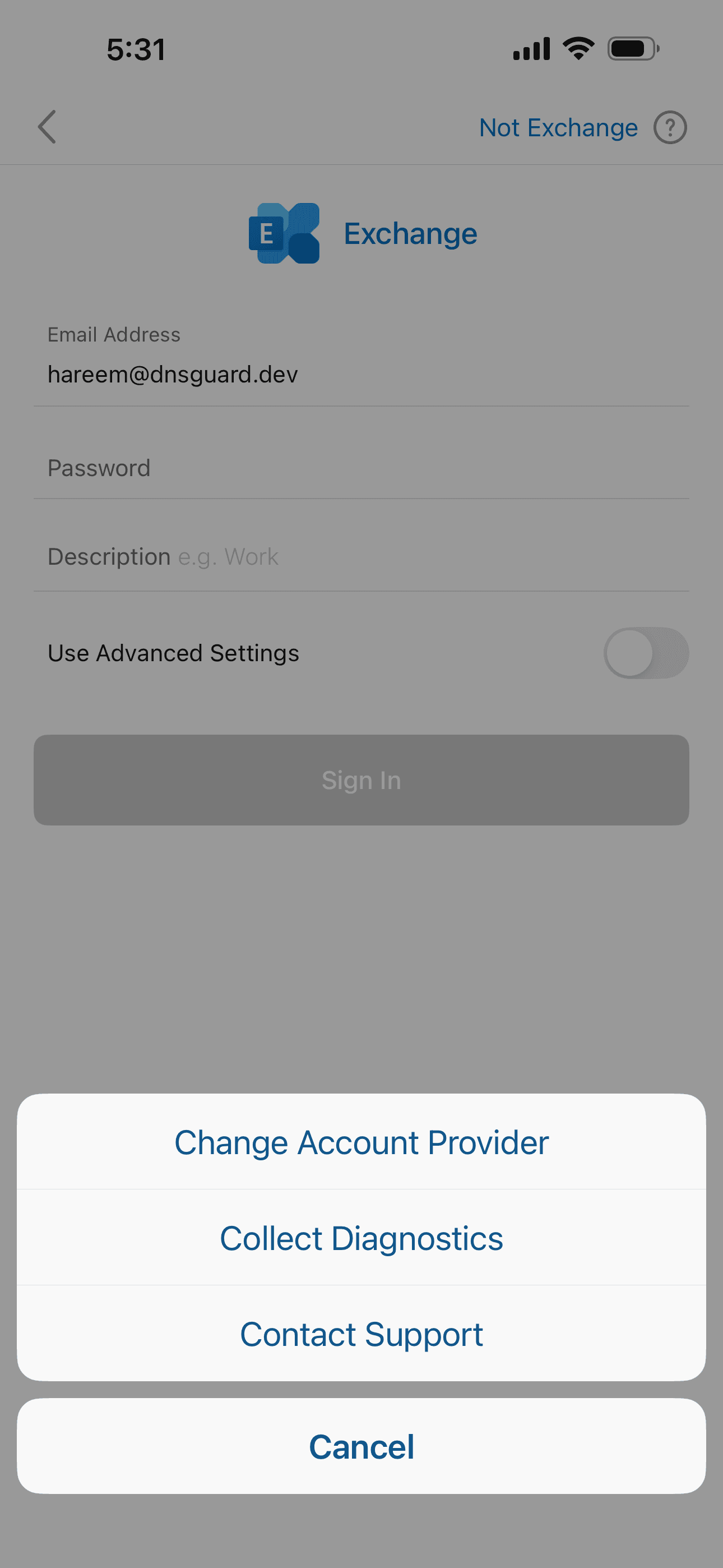
If Outlook shows an Exchange setup screen, tap Not Exchange in the top-right corner.
- In the menu that appears, tap Change Account Provider.
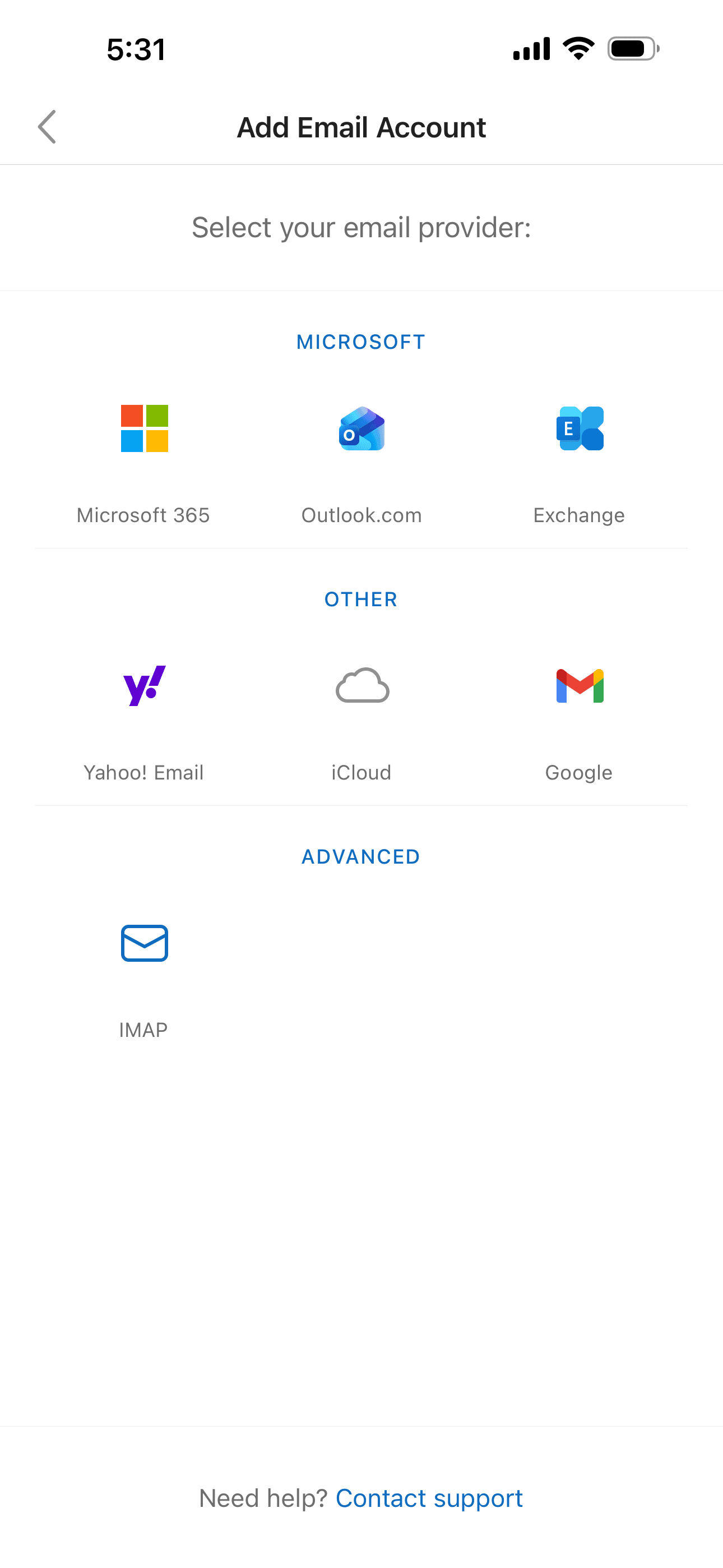
4.Select IMAP
On the Add Email Account screen, scroll to Advanced and tap IMAP.
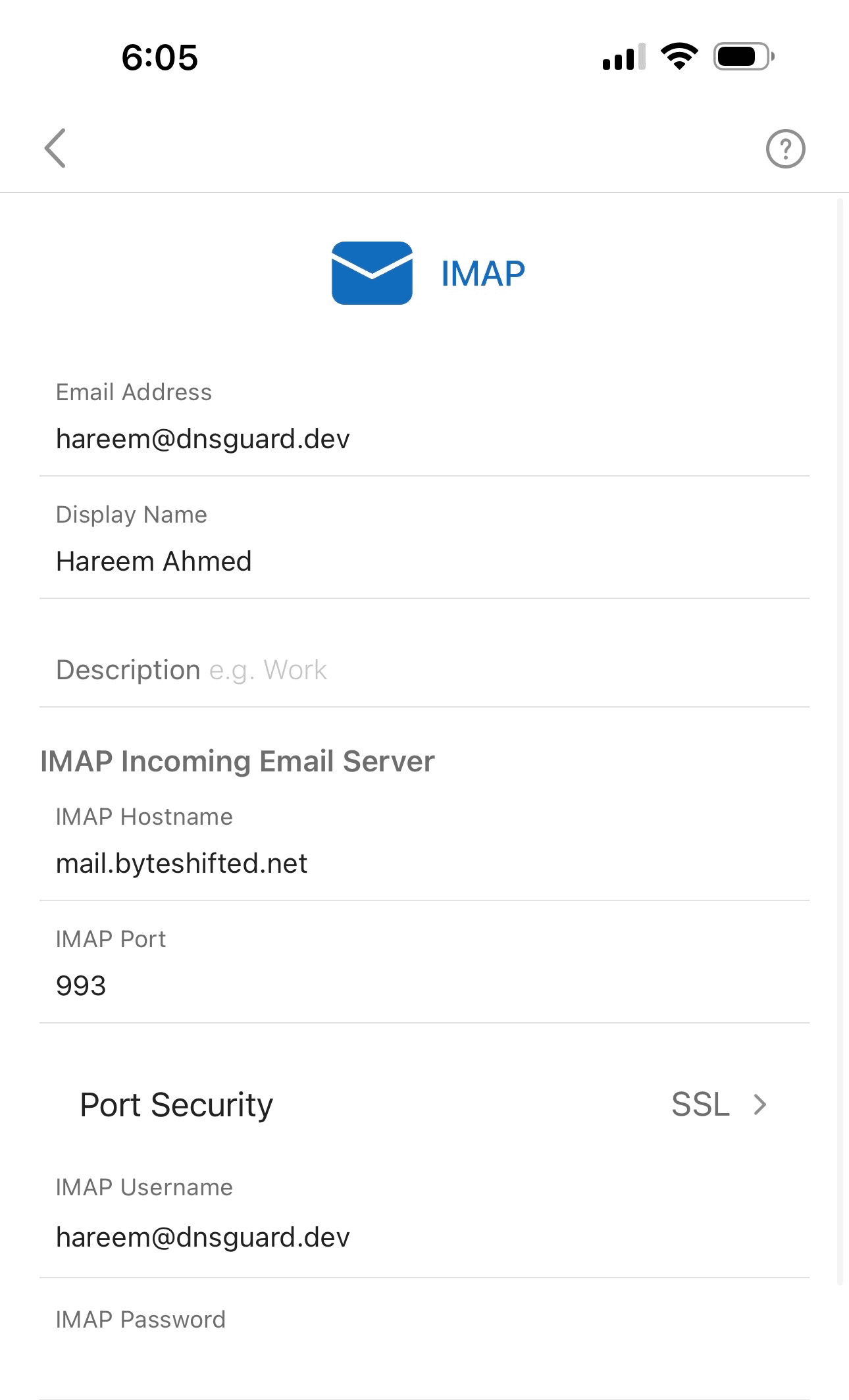
5.Enter IMAP incoming settings
Fill in your display name and mailbox password. Confirm the incoming server settings below.
- Email address
- user@yourdomain.com
- IMAP hostname
- mail.byteshifted.net
- IMAP port
- 993
- Port security
- SSL
- IMAP username
- user@yourdomain.com
- IMAP password
- Your email password
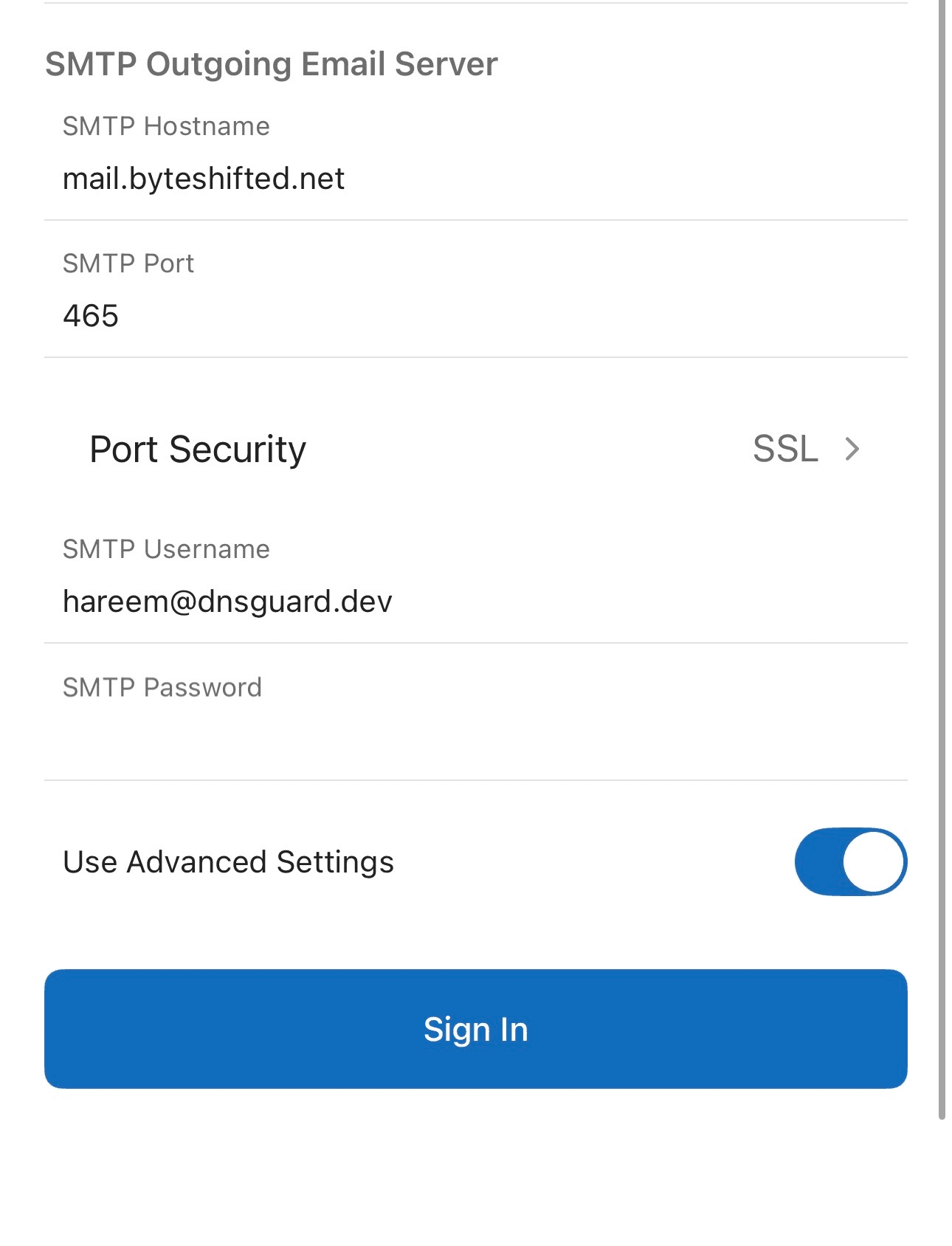
6.Enter SMTP settings and sign in
Turn on Use Advanced Settings if needed, then enter the SMTP settings below and tap Sign In.
- SMTP hostname
- mail.byteshifted.net
- SMTP port
- 465 (SSL) or 587 (STARTTLS)
- Port security
- SSL
- SMTP username
- user@yourdomain.com
- SMTP password
- Your email password
7.Your mailbox is ready
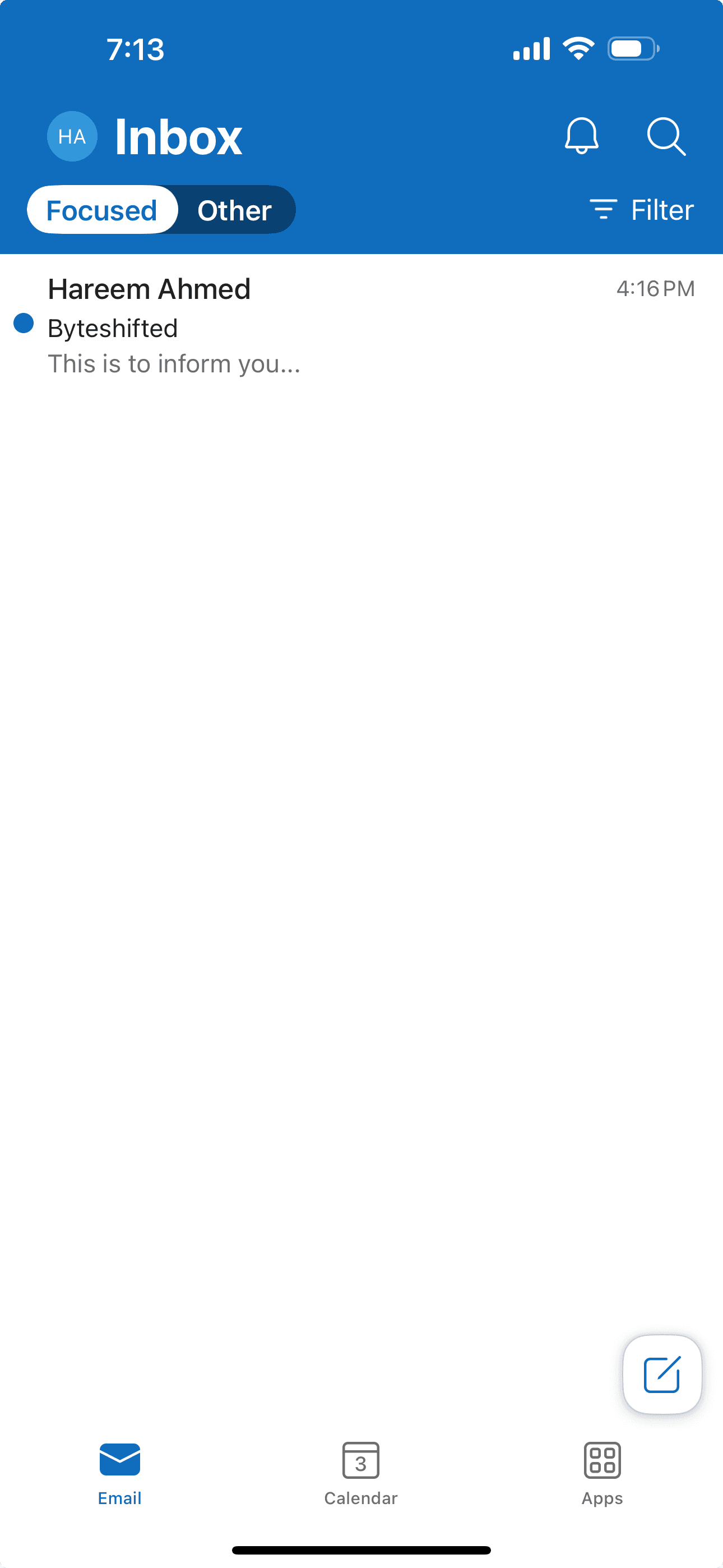
After sign-in completes, your inbox opens in Outlook. Allow notifications and mail sync if prompted. Send a test email to confirm sending and receiving work.