
Back to setup guides
iOS Apple Mail
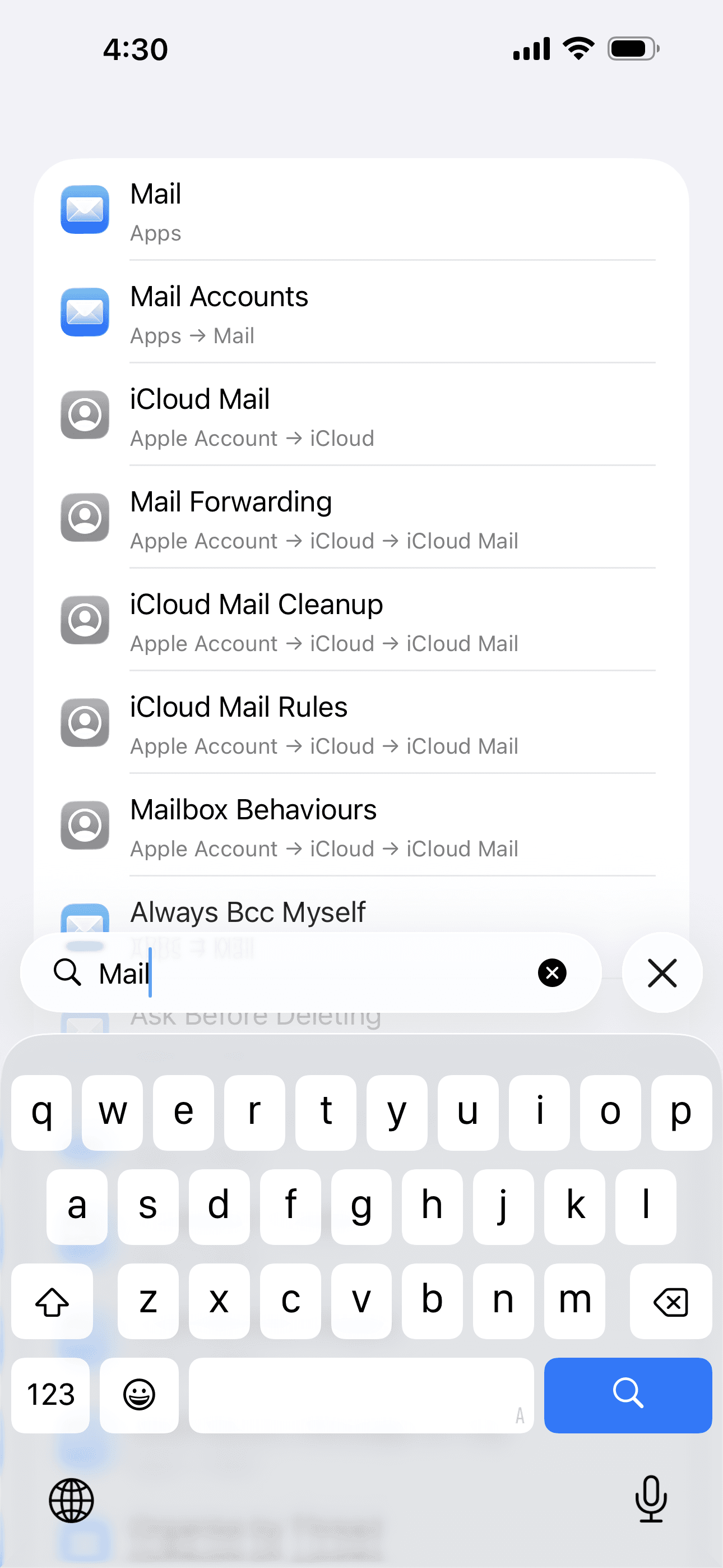
1.Open Settings and go to Mail
Open the Settings app on your device. Use the search bar at the top and type Mail, then tap Mail in the results.
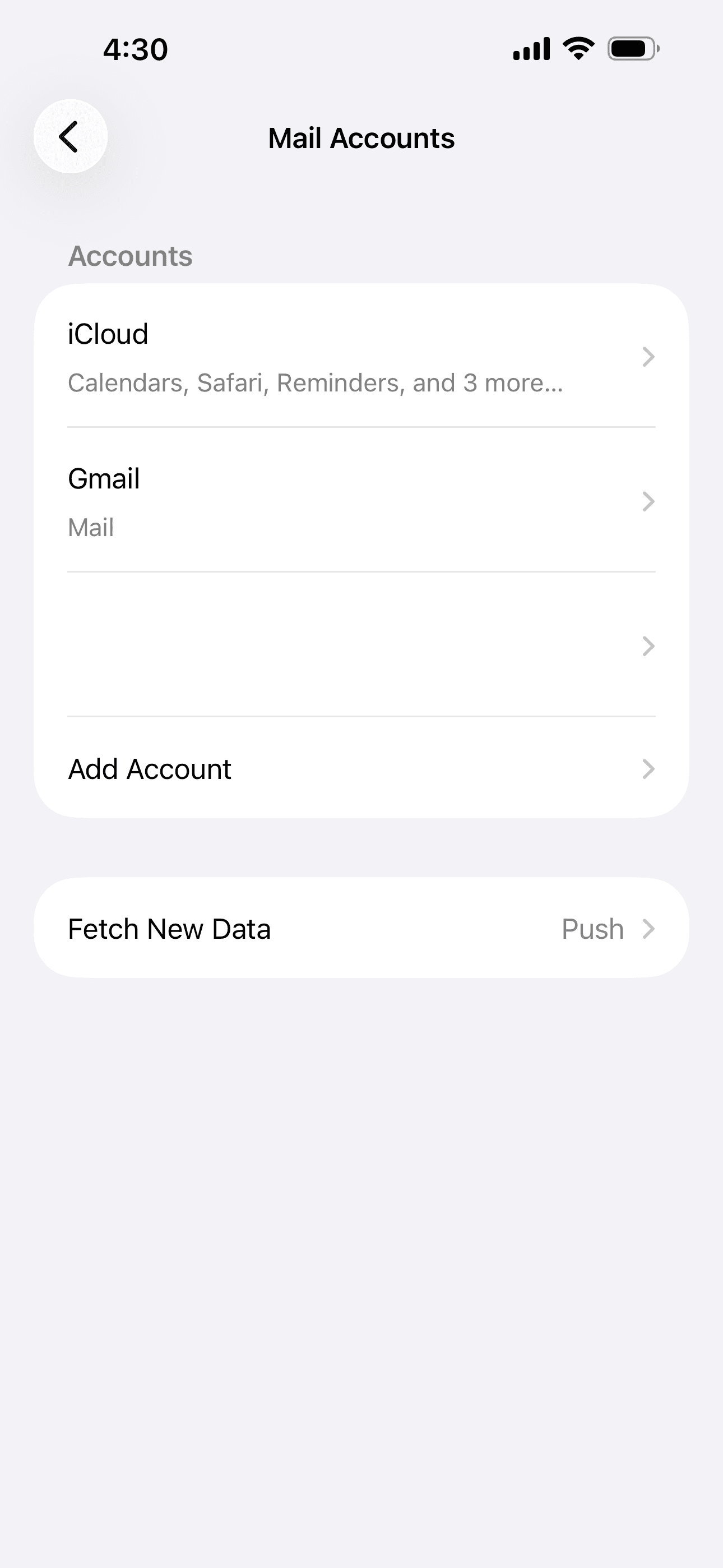
2.Tap Add Account
On the Mail settings screen, scroll down and tap Add Account.
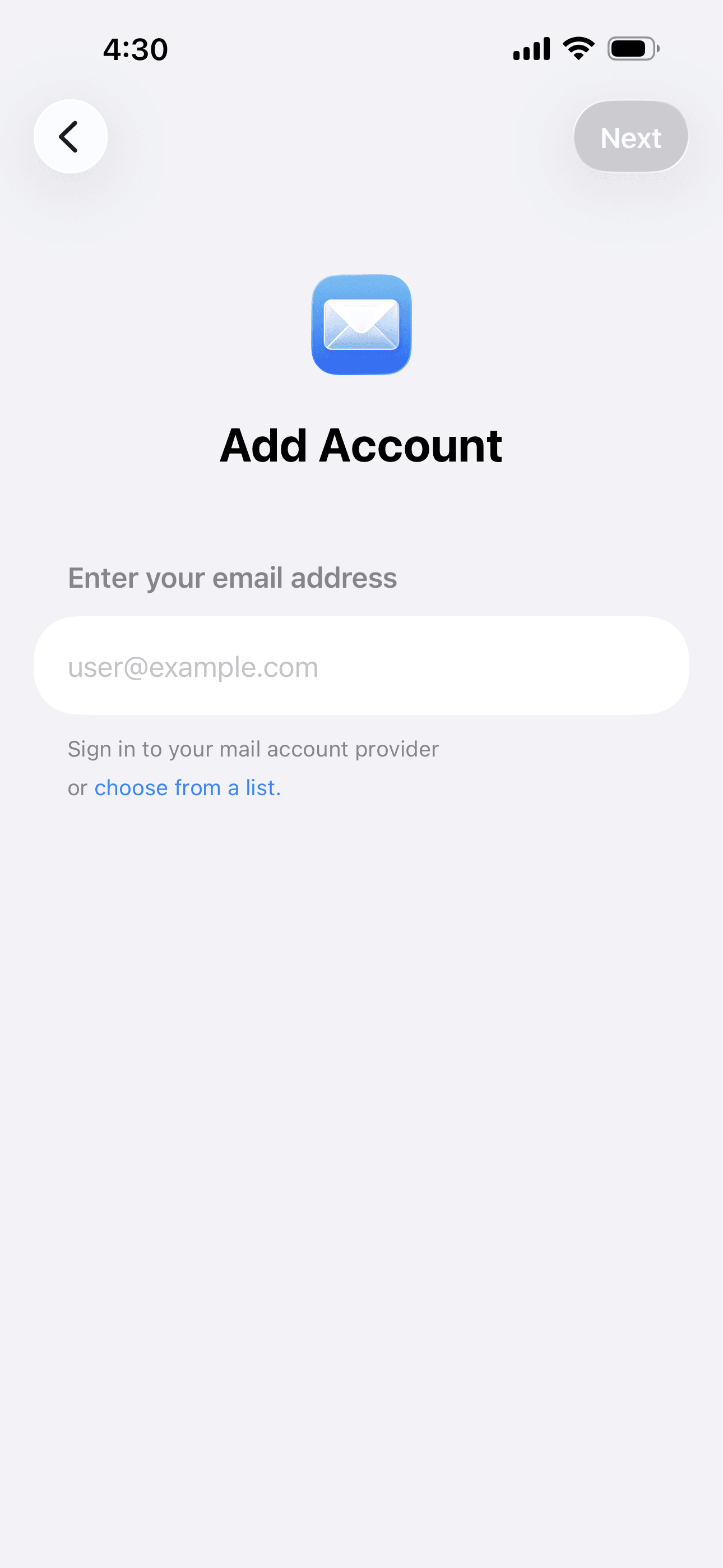
3.Choose from a list
Under the email field, tap choose from a list to pick a provider manually.
4.Select Other Account
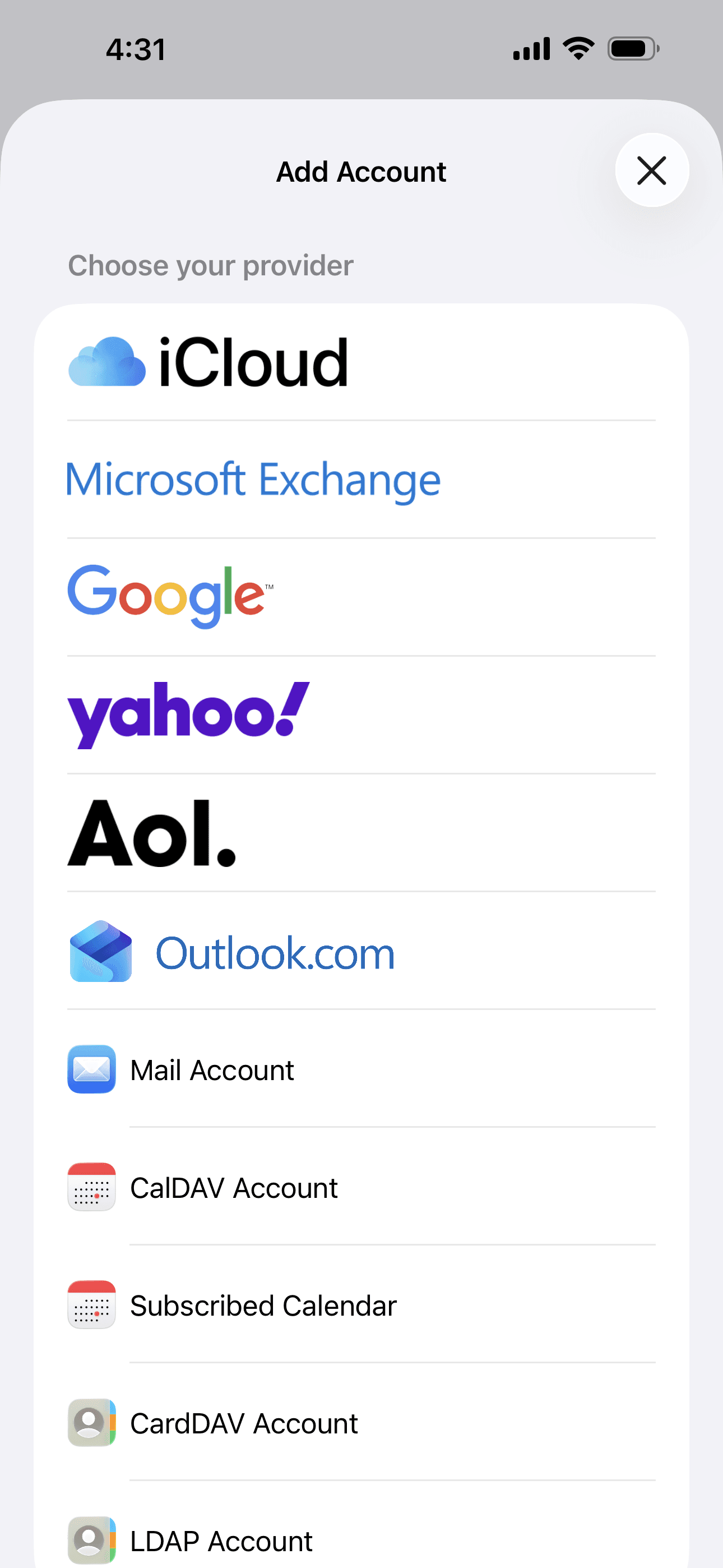
On the provider list, scroll down and tap Other Account.
5.Enter your account information
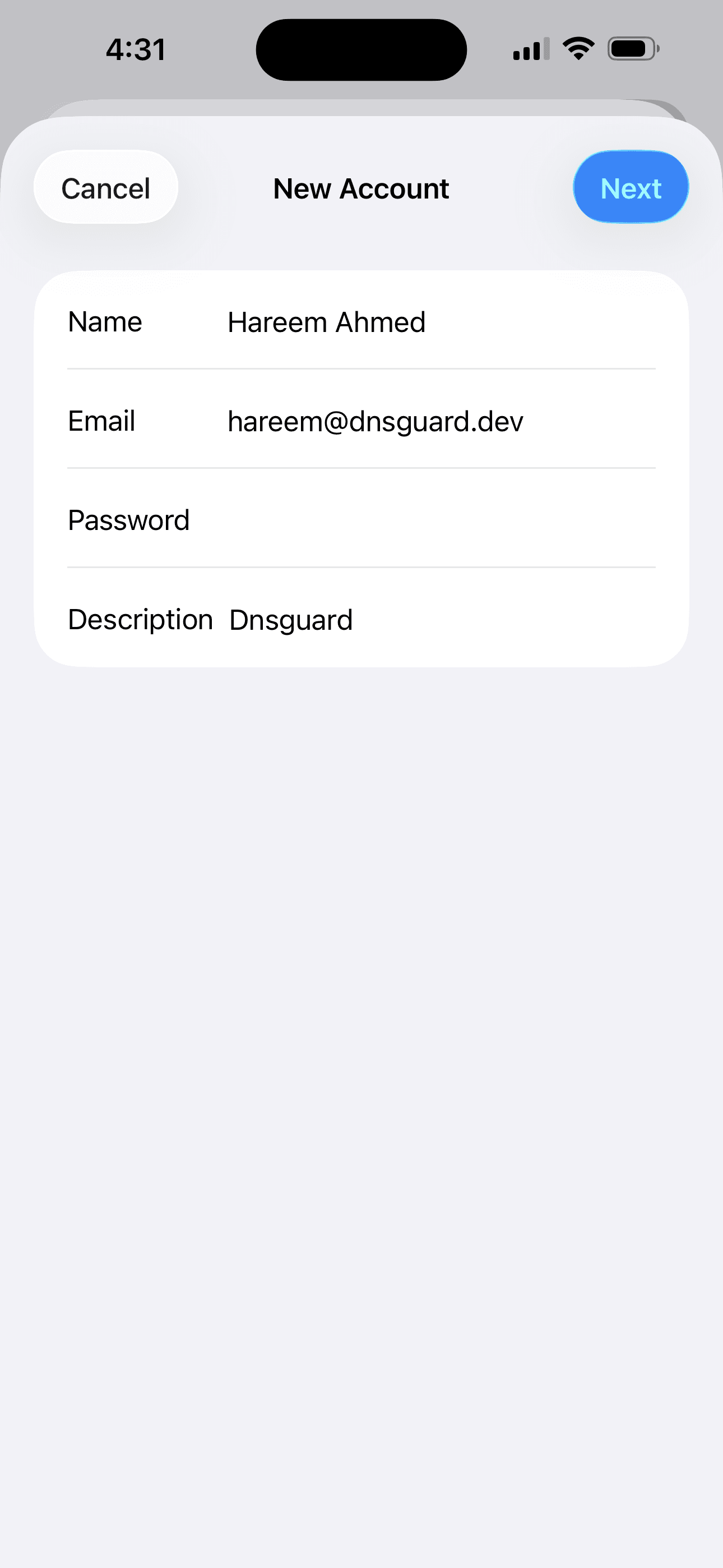
Fill in your name, full email address, mailbox password from your Byteshifted dashboard, and an optional description. Tap Next.
- Name
- Your display name
- user@yourdomain.com
- Password
- Your email password
- Description
- Optional label (e.g. Work)
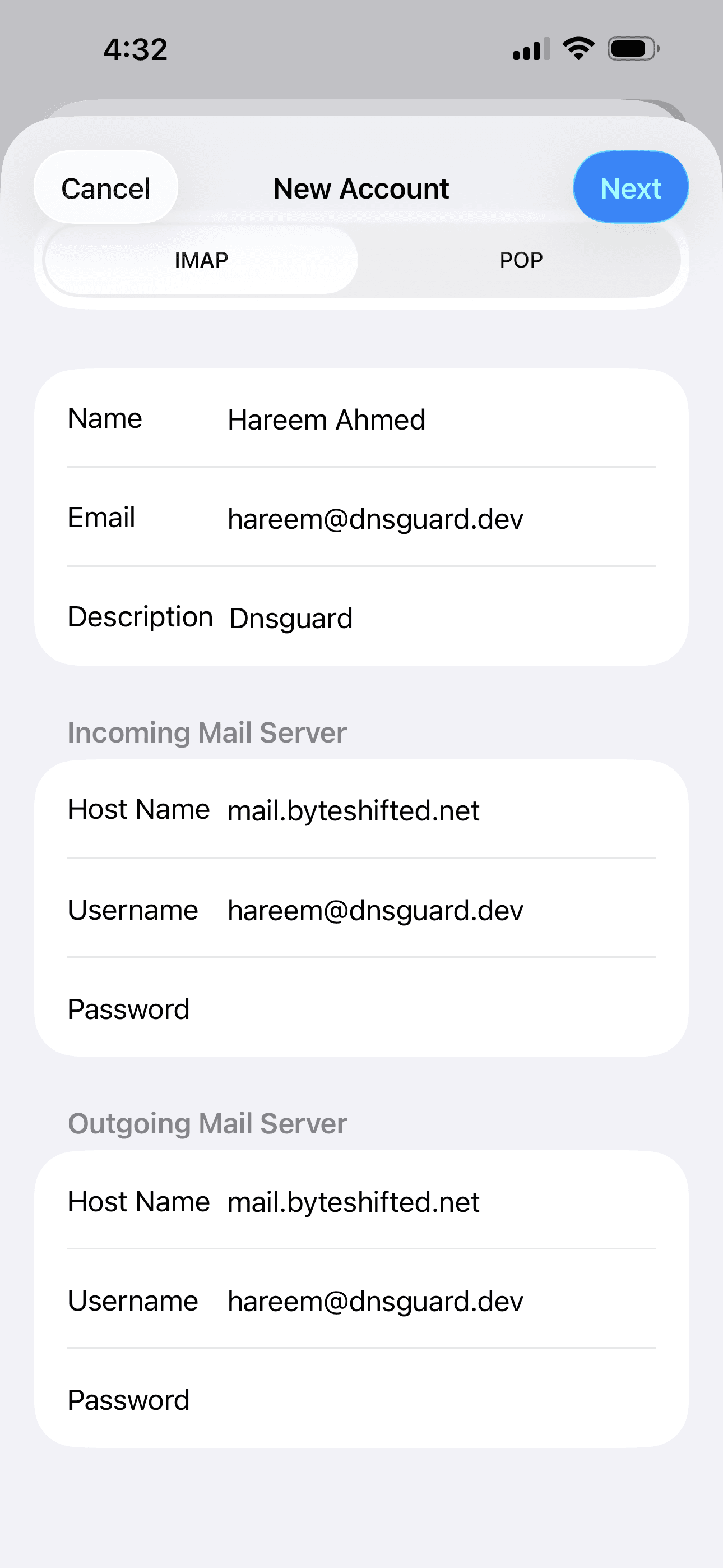
6.Enter IMAP and SMTP server settings
Make sure IMAP is selected (not POP). Enter the server settings below for incoming and outgoing mail. Use your full email address as the username on both servers, then tap Next.
- Incoming Host Name
- mail.byteshifted.net
- Outgoing Host Name
- mail.byteshifted.net
- Username (incoming & outgoing)
- user@yourdomain.com
- Password
- Your email password